
Development Toolbar
Introduction
Why is this page slow? Which statements did it run, and did one of them run once per row? What did that click do on the server? Did my last save compile? In development every page you open answers these on the spot, without a profiler, log grep or terminal: a handle on the page's right edge shows the request's time and statement count, and clicking it opens a drawer of panels for that request.
The Panels
Each panel shows one side of the request.
Request
The method, path and status; the route's pattern (GET /pets/{id}); the handler that answered, with its file and line; the arguments it was called with and where each came from — path, query, body or a dependency (fields named like a password, token or secret hidden); and the request's and response's headers, with cookies and credentials hidden. With web/auth, who the request came from and which gate let it through or refused it.
SQL
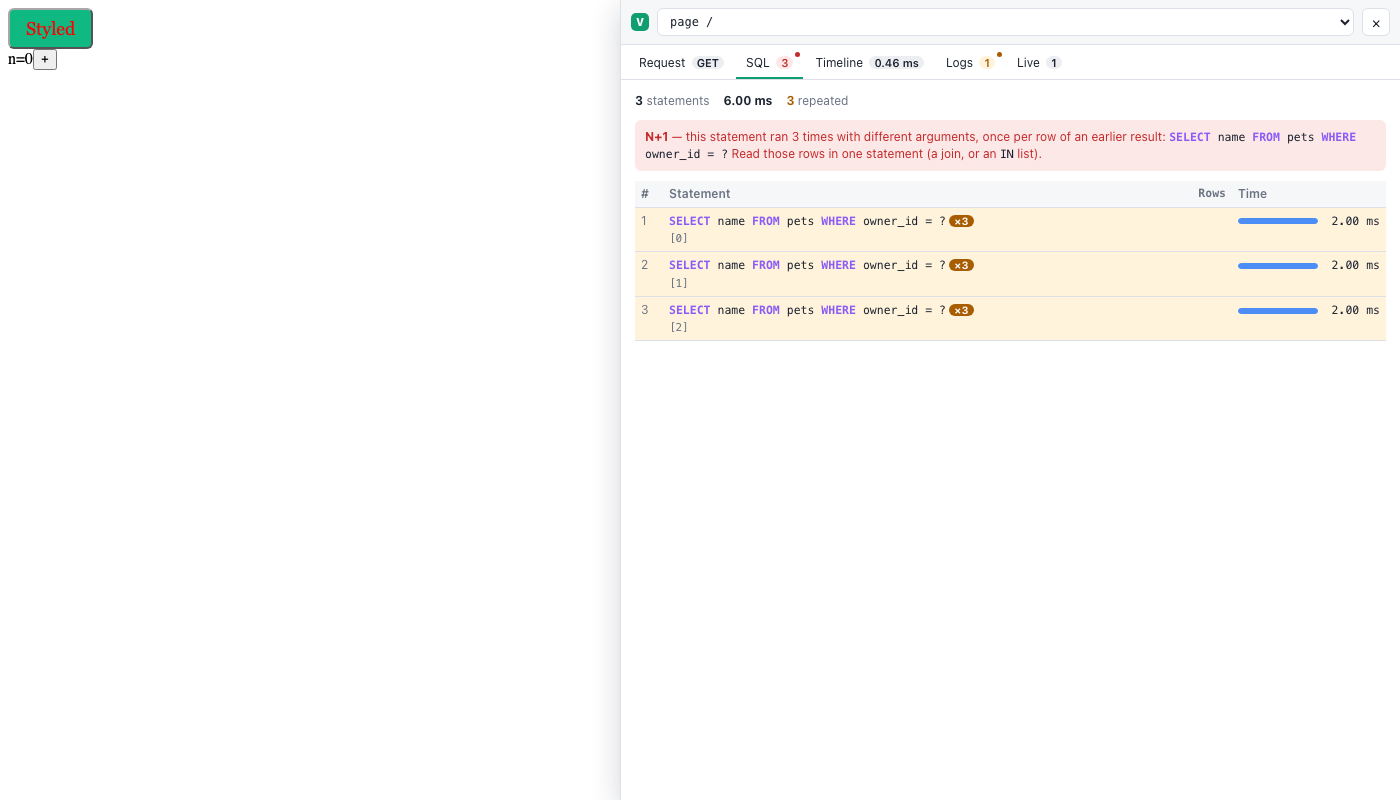
Every statement the request ran, in order, with its arguments, rows and time as a bar. A statement that ran more than once is amber. One that ran three times or more with different arguments is an N+1 — one statement per row of an earlier result — and the panel says so, with the statement: read those rows in one query instead (SelectRelated or PrefetchRelated with the ORM). A statement that failed, or that the ORM refused before sending it, is red with its error.
Timeline
Where the time went, as bars against the request: the app's and the route's middleware, each call decorator (@timed, @cached), the handler, the render, and the statements, nested as they ran. A decorated function called while the page renders shows inside the render — without a context.Context parameter too.
Logs
What slog's default logger wrote for the request: records written with its context (slog.InfoContext(ctx, …)), and those written from the request's goroutine. They still go to the console as before.
Live
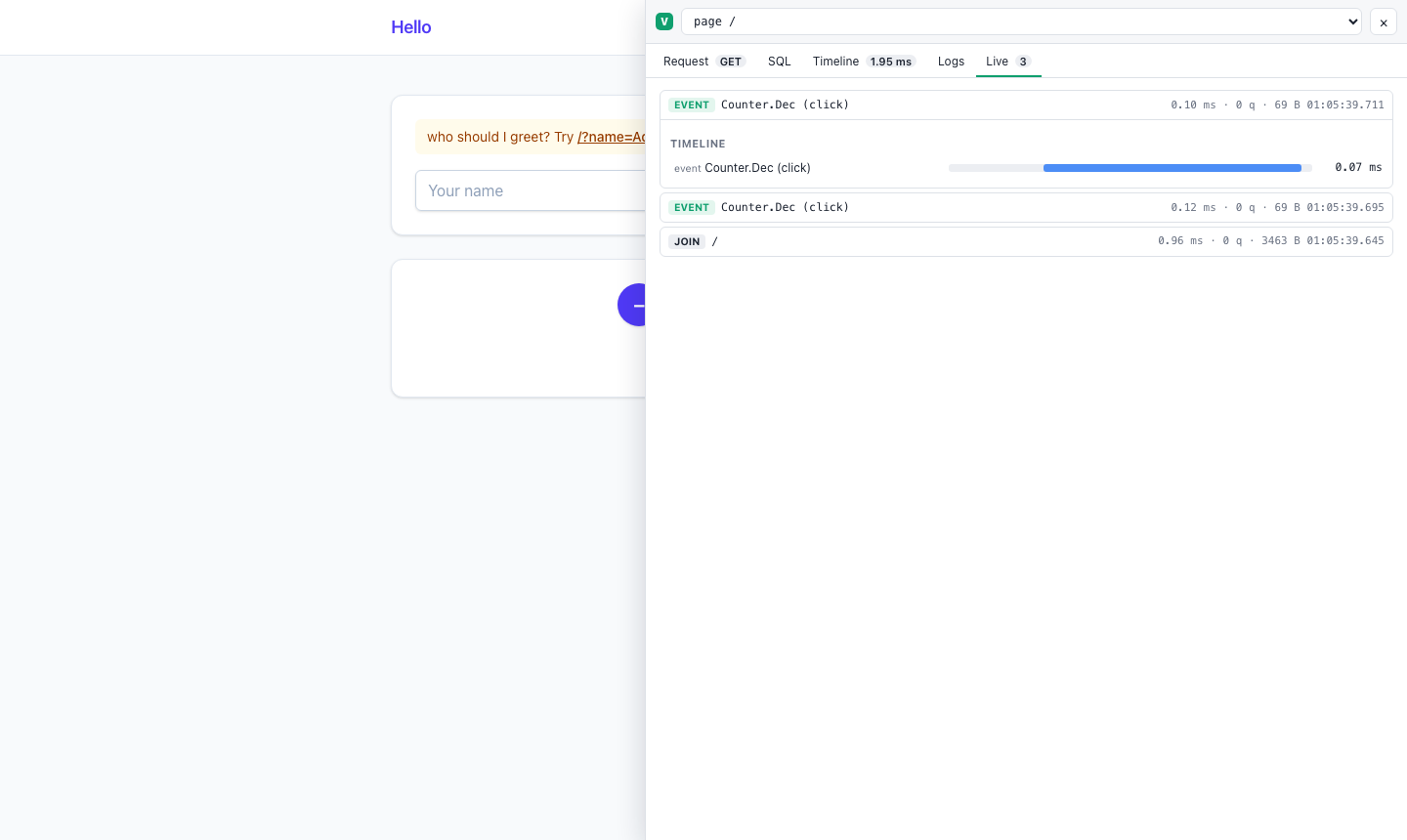
On a live page, each message its connection carried, the latest first: the join, each event named by its handler (Counter.Inc (click)), each navigation and patch, each broadcast it took. Each shows its time, statements and reply size; open one for what it sent (below), its SQL, timeline and logs. A message that failed is red, and so are failures only the browser saw: a push that got no reply in time, a connection that dropped under it.
Assets
The page's styles and scripts: its scoped components, their files and their module, and the app-wide ones.
Crons
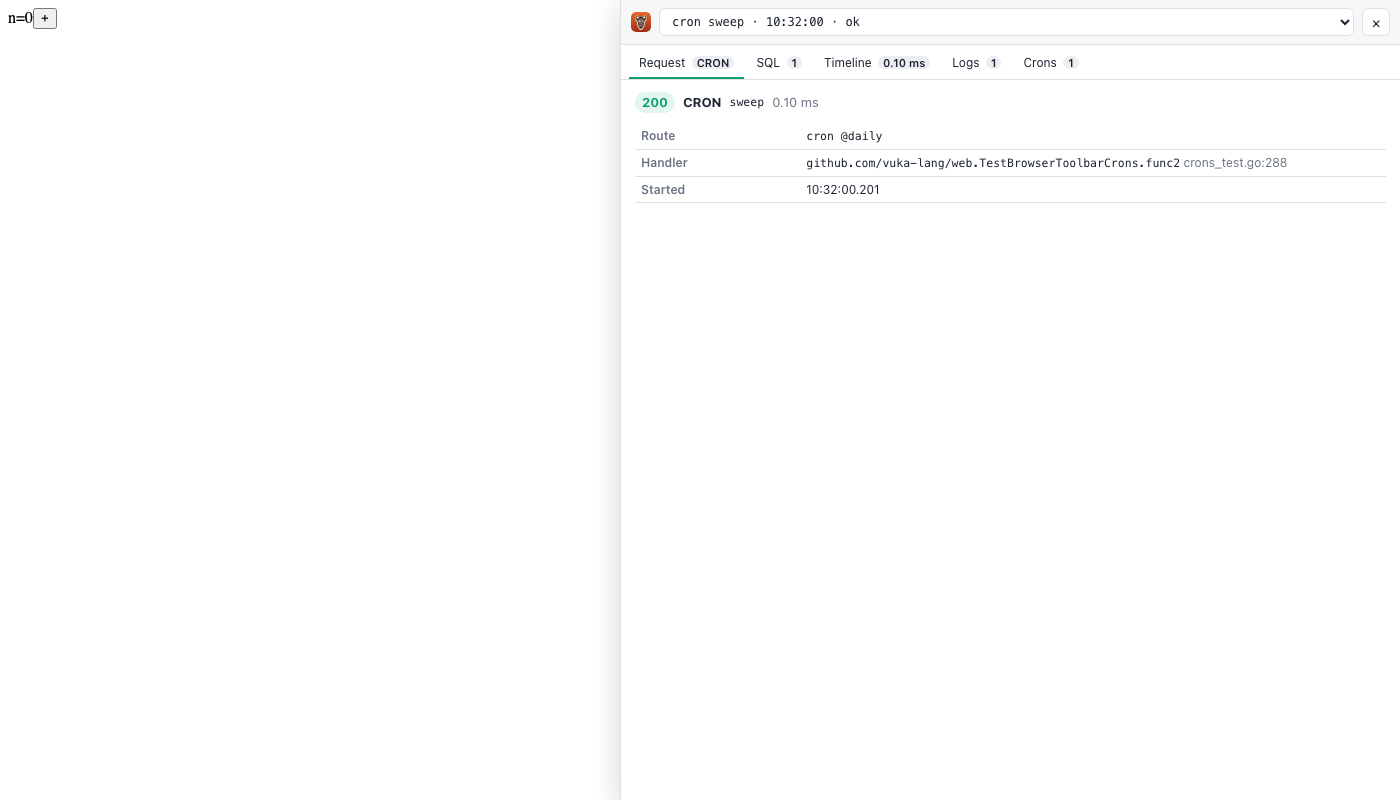
The app's crons: each one's schedule, function, next run and last run (red when it failed), and a Run now button. Each run is a record of its own, listed under Cron runs at the top: open it for its statements, timeline, logs and error, as for a request.
Mail
With web/mail, the messages the request (or the cron run) sent or queued: sender, recipients, subject, attachments, and the HTML in a sandboxed preview — where development email goes under the log driver.
Inspecting What a Live Message Sent
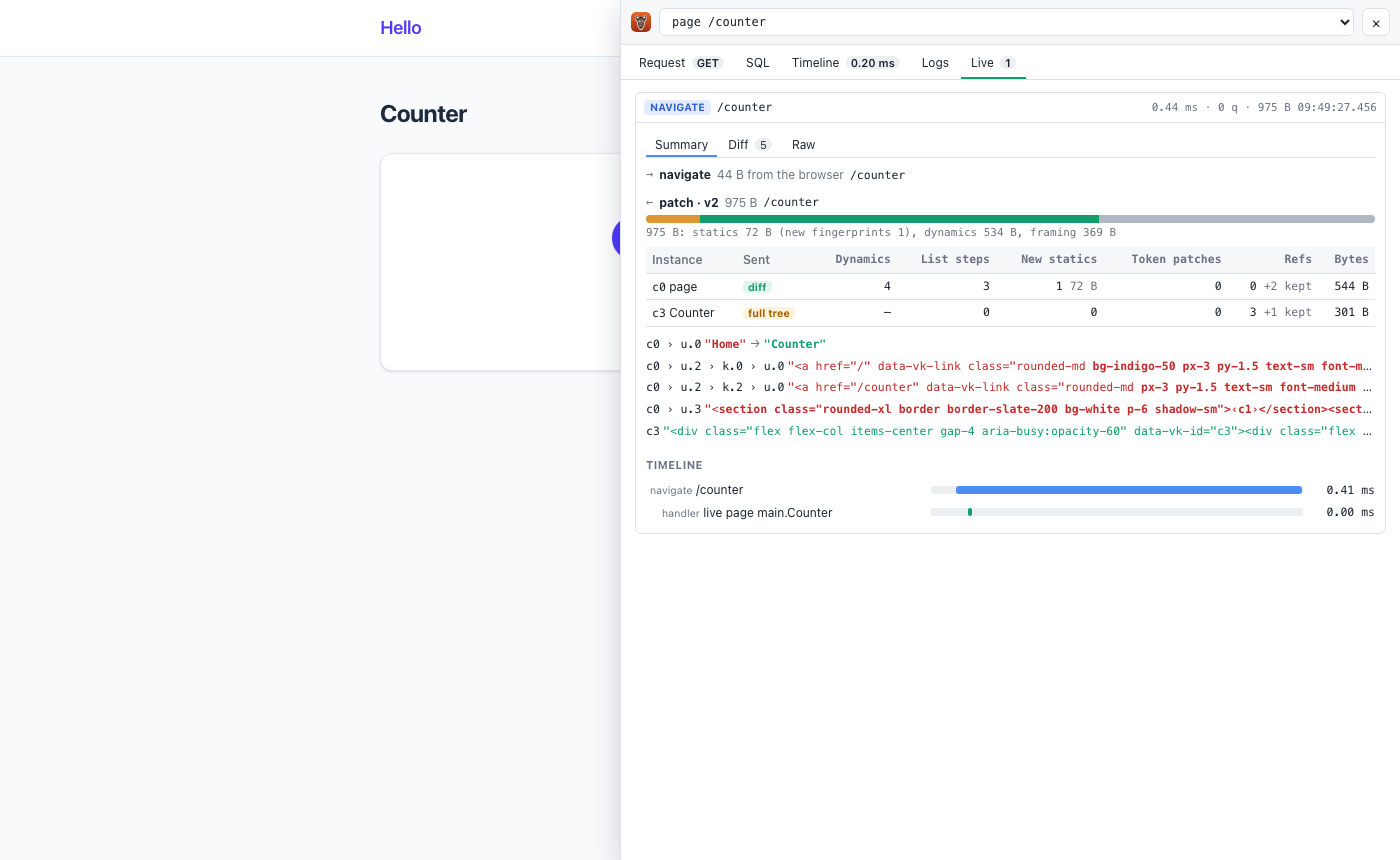
Why is this click's reply 9 kB when it changed one number? Open the message in the Live panel: it keeps the frame the browser sent and every frame the server answered with, decoded, in three views.
Summary
The browser's message in a line (c1:1 click, /pets?page=2 (patch), form name, email), then each server frame: a bar and a line splitting its bytes by what they carry —
974 B: statics 610 B (new fingerprints 2), dynamics 280 B, framing 84 B— and a row per instance it updated: its id and component (c1 Counter), whether it went as a full tree, a diff or whole HTML, and how many dynamics changed, list steps, statics newly sent (and their bytes), token patches and references to strings the browser already keeps. The first changes follow, and the JS commands the reply pushed. A large reply's cause is on one line: statics mean markup the page hadn't seen yet (a branch taken for the first time, a page navigated to); dynamics mean values; a full tree row means an instance was mounted again rather than changed.
Diff
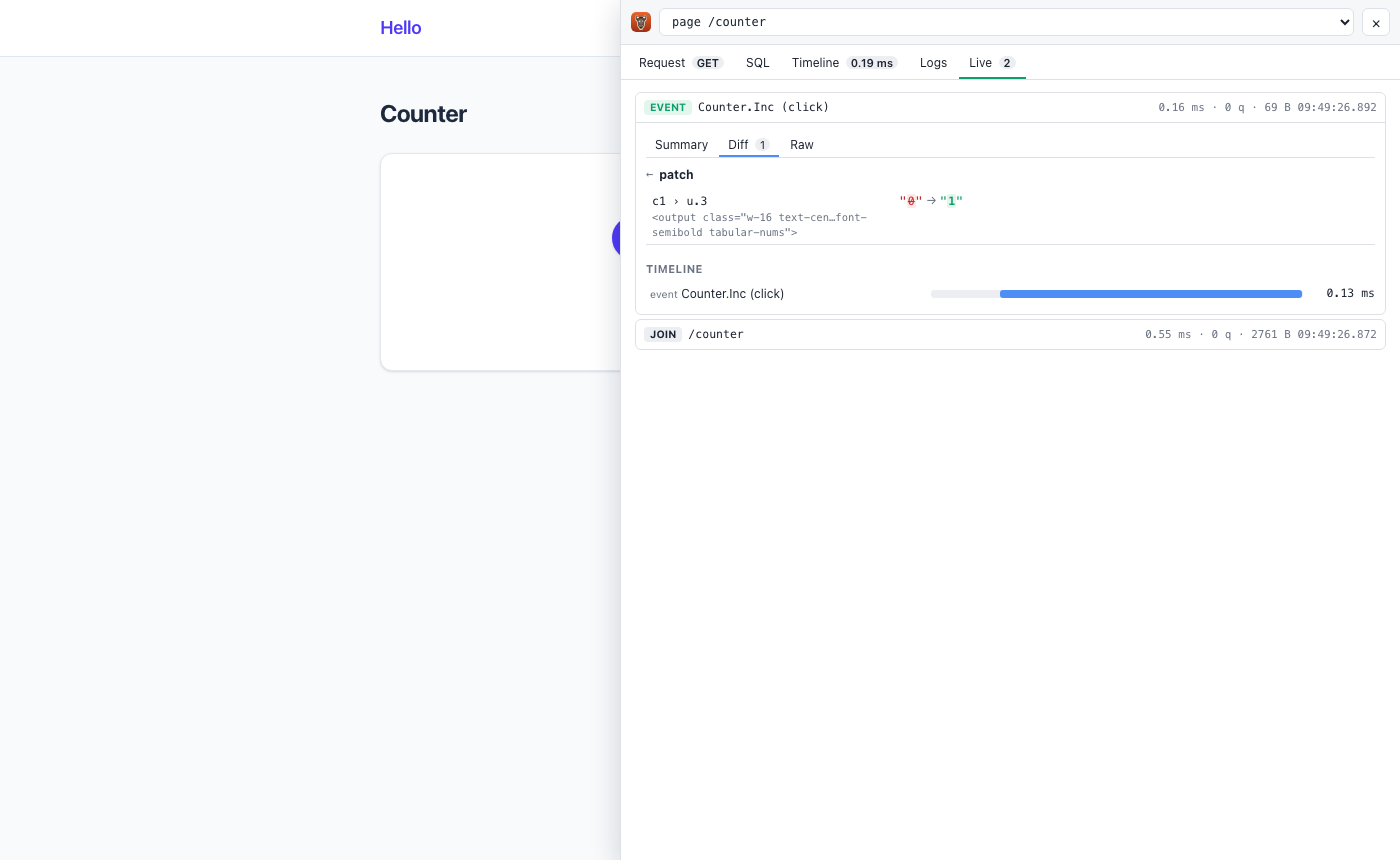
Each changed dynamic by its path in the instance's render tree, with the markup it sits in, and the value the browser held beside the new one, the part that differs marked:
c1 › u.3                 "4" → "5"
<output class="…">
u.3 is the frame's fourth dynamic, k.2 a loop's third item, so c1 › u.1 › k.2 › u.0 is a cell of a row of a list. A keyed row that moved says where from, a new row shows its markup, removed rows show what went, and a token patch shows the whole value before and after. On a page using protocol v1 each instance's HTML is one value: the Diff shows it before and after.
Raw
The browser's message and each server frame as JSON, indented and coloured, with a Copy button — what you'd see in the browser's network tab, next to the request that produced it.
Where the Old Values Come From
The old values come from the toolbar's own copy of what the browser holds: while it is on, each connection keeps the statics, kept strings and trees it has sent, and applies every frame to them as the browser does. Password inputs' values, and form fields named like a password, token or secret, are (hidden) in the recorded message. A frame over 64 kB is kept cut, with its full size; a page keeps the frames of its latest messages up to 1 MB, and an older message says its frames were dropped. Views are drawn when you open a message, so a long session's panel stays quick.
Following Live Navigation
A live page that moves over its connection — a ui.Link, a JS.Navigate or JS.Patch command, PushNavigate or PushPatch, the back and forward buttons — keeps the toolbar on the page you're looking at (Navigation):
- While the navigation is in flight the handle says where to:
loading /pets…. - Then the handle shows that navigation's time and statements, and the list at the top selects the page it landed on. Its panels hold the navigation's server work as a page load's would: the route and handler, its parameters, statements, timeline and logs. Its Live panel carries on from there, the navigate message first, with its Summary, Diff and Raw.
- A patch — the same page with other parameters — updates the URL and the parameters the Request panel shows, without a new entry.
- Back and forward select the page's entry again while the app keeps it.
Every Call the Page Makes
The list at the top of the drawer holds the page and each fetch and XHR call it made since it loaded (POST /api/pets → 201); pick one to see its panels. Every response of a development app carries the id of its record in an X-Vuka-Toolbar header, which is how the page finds them — and how you can find a request's record from the network tab.
While vuka run -watch Rebuilds
With vuka run -watch the old build keeps answering while the next one compiles, so the page in front of you can be older than your code. The handle says so: building… 1.2s while the next build compiles, and build failed when it didn't — the drawer then shows the compiler's output above the panels, .vuka file and line included. The build that keeps answering is the last good one, until a save compiles.
Asset and Island Builds
The styles, scripts and islands build beside the app, and their failures show the same way: island build failed (or asset build failed) on the handle, the build's error in the drawer — for a Vite build, the end of what Vite said. The last good bundle keeps serving, so the other islands keep working; an island the last good bundle doesn't have shows a box in its place saying it isn't built and why. Both clear once the component builds again, and the island then mounts without a reload.
Adding Your Own Panels
Keep custom panel data collection in logic files and its rendering in a one-struct .vuka.html shape. Use the toolbar extension API to expose the resulting node; do not couple application page routing to diagnostic panels.
WARNING
Never include secrets or personally sensitive values in a development panel.
When It Is On
The toolbar is on in development and off everywhere else:
| toolbar | |
|---|---|
vuka run, vuka run -watch | on |
web.Dev(), VUKA_ENV=development | on |
web.NoToolbar() | off |
| a test binary | off, so tests see the pages the app serves |
any other app — vuka build for production | off |
When it is off nothing is recorded, no route or header is added, and nothing hooks into the program; a request costs what it did without it. When it is on, recording adds a few microseconds to a request, and keeping and decoding a live message's frames a few more.
What It Changes on the Page
Only one script tag in the page's <head>, beside the stylesheet's link; the page's markup is otherwise the one the app renders, and live updates never carry the toolbar. The toolbar draws itself in a shadow DOM, so your Tailwind classes and its styles never meet, and it follows the system's light or dark scheme. Pages that aren't whole documents — fragments, JSON, pages fetched or posted by a script — get no tag; a page a form's POST renders for the browser to show does (Forms that fail).
The app keeps its latest 100 requests (and 200 messages per live page, with their frames up to 1 MB) in memory, and the toolbar fetches them from /_vuka/toolbar/. A record that has dropped out says so.